- Related Products
- AD360
- Log360
- ADAudit Plus
- ADSelfService Plus
- EventLog Analyzer
- Exchange Reporter Plus

ADManager Plus, an IGA solution, facilitates streamlined user life cycle management across integrated enterprise applications. Even if your application isn't on the predefined list, you can integrate it with ADManager Plus, provided it supports REST APIs, SOAP APIs, and Graph APIs. Once integration is complete, you can automate and orchestrate key identity life cycle processes across applications.
Integrating a custom application with ADManager Plus involves two major steps:
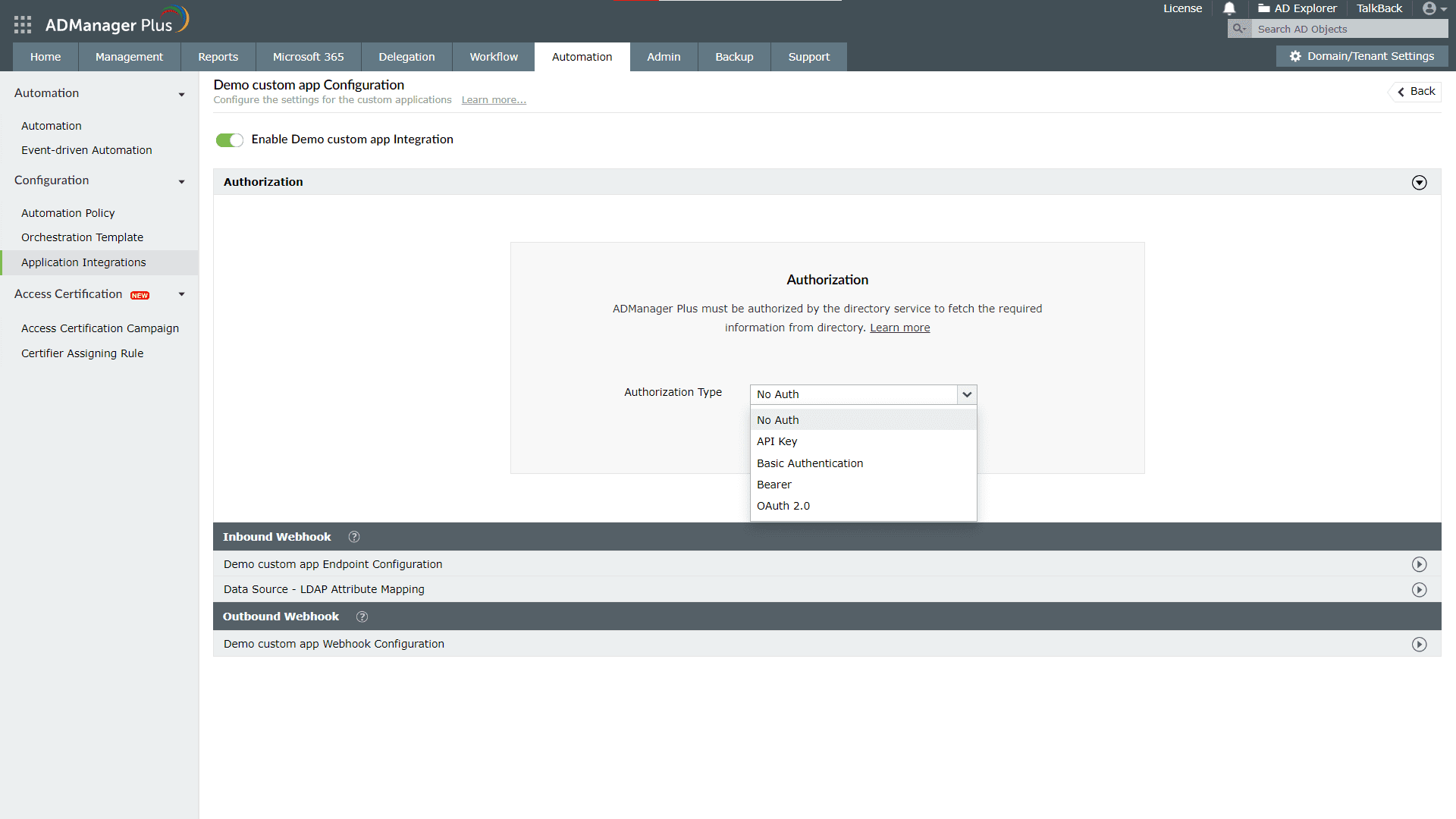
ADManager Plus offers five authorization methods to authorize API requests. Choose the method that fits your security and operational needs and configure it.
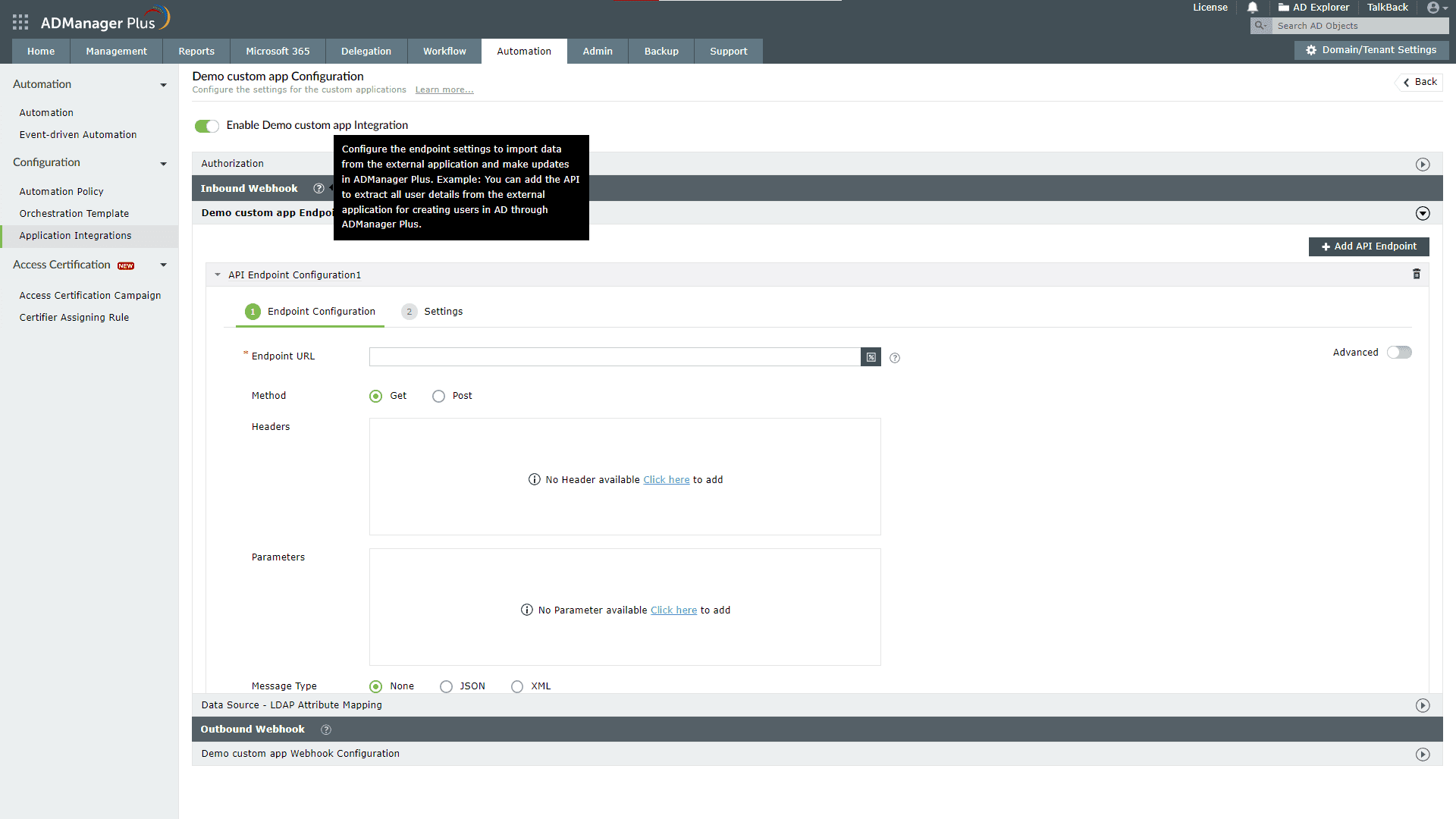
You need the API endpoints of the application to import objects and their necessary details into ADManager Plus. You can find the required API information in the application's API documentation, or you can contact the support team of the application with which you're integrating. There are two types of endpoint configuration in ADManager Plus:
Depending on your organization's goals, you can configure either or both.
Perform the steps given in each of the sections below and jump-start your identity life cycle management process with ADManager Plus right away.

Select No Auth as the Authorization Type if your request doesn't require authorization, then click Configure. If you do this, the authorization details will not be shared with the API client.
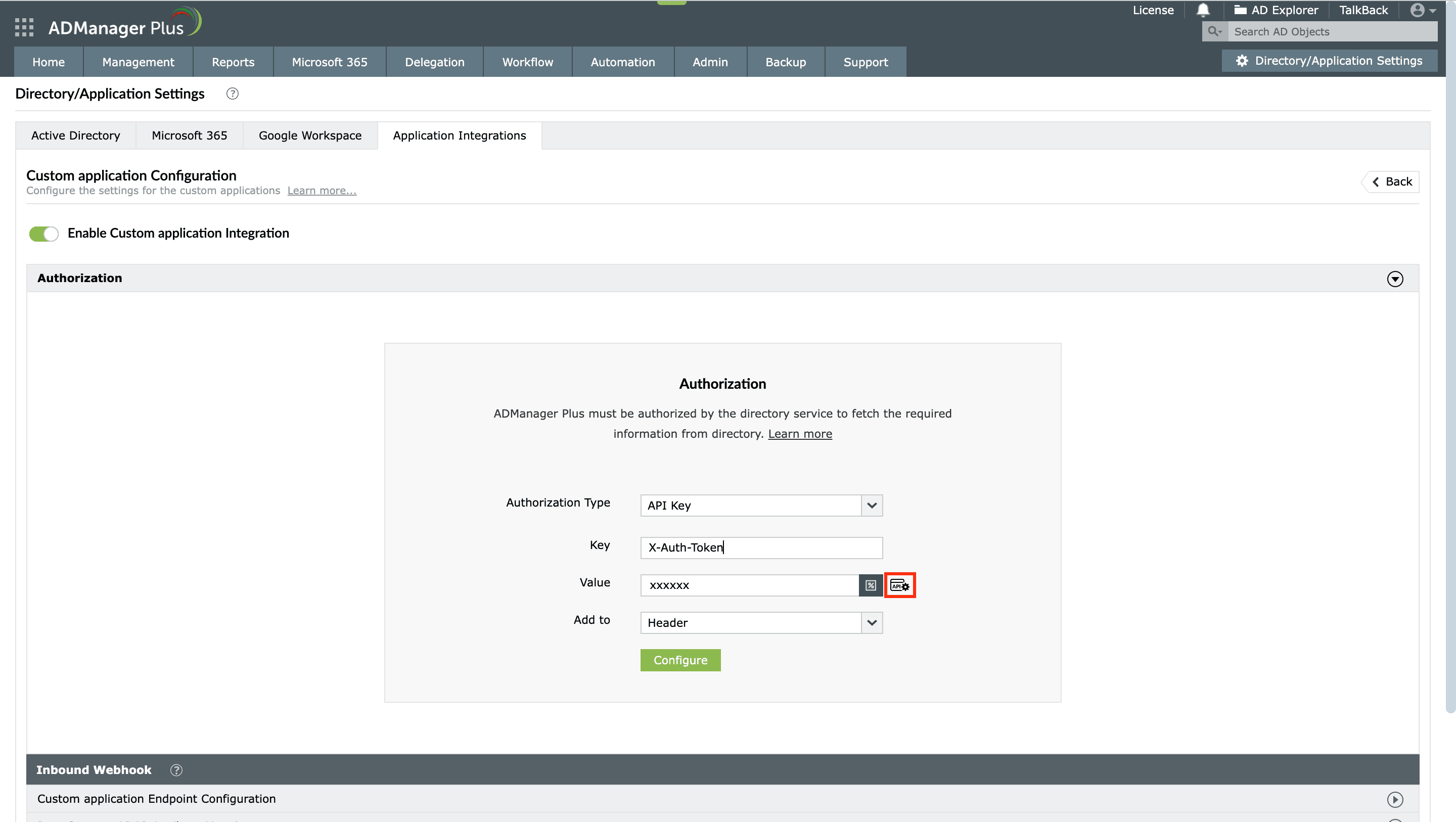
If you select API Key as the Authorization Type, enter the key name and value in the Key and Value fields, respectively. Associate the key with a header or query parameter using the Add to drop-down and click Configure. You can refer to your application's API documentation for more details.
If you select Basic Authentication as the Authorization Type, specify a Username and Password and click Configure.
If you select Bearer as the Authorization Type, enter your application's API key in the Token field and click Configure. The API key can be obtained by following the steps mentioned in your application's API documentation.
If you select OAuth 2.0 as the Authorization Type, specify the following:
For example: http://{hostname}/OAuthCode.do. The hostname will be the machine on which the ADManager Plus instance is installed.
While integrating a new application, this should be configured in the API provider's OAuth configuration.
While integrating custom applications with ADManager Plus, you now have the option to get the authentication tokens from API endpoints for authorization. This is supported in the <API Key> and <Bearer> authorization types. To utilize this option,
Note: This will also be listed as a macro in inbound and outbound webhooks in the Select Macro window pop-up.
An inbound webhook enables the transfer of data from the custom application to ADManager Plus. To configure this, provide the required details under the Endpoint Settings and Response Settings sections.

Note: If the response type is XML, go to the Response Settings section and set the response type to XML. Then, return to the Endpoint Settings tab and select a CSV file that contains the attribute paths needed to parse the XML response.
Note: Follow these steps to configure advanced settings.
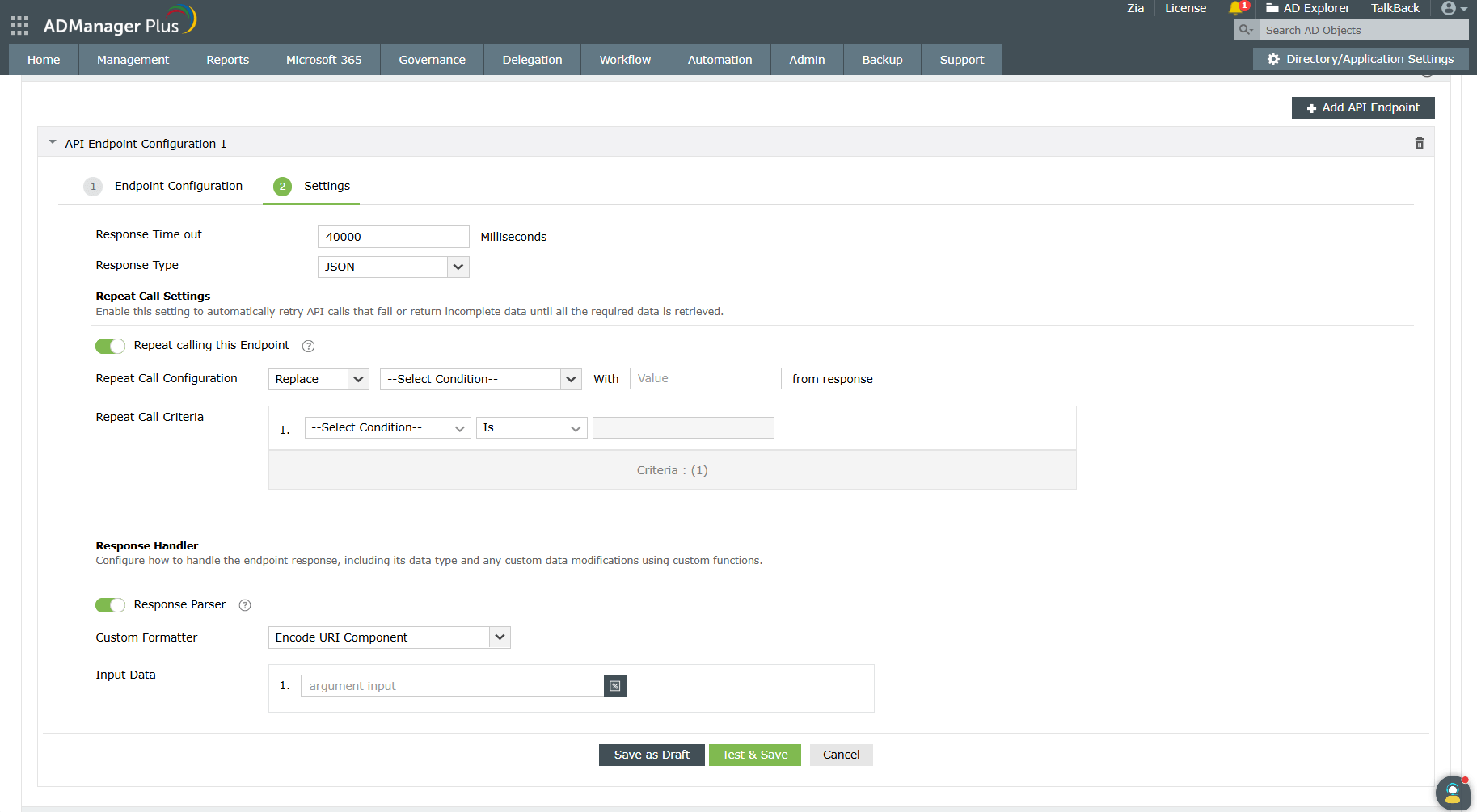
Specify the maximum time in milliseconds in the Response Timeout field.
Enable the Repeat Call to this Endpoint toggle to configure a criteria that will repeatedly run until all data is retrieved from the integrated application.
Select the type of action from the list given in the first drop-down. In the adjacent drop-down, mention the pagination parameters to get the data in ordered sets until the whole dataset is fetched. Enter the value of the pagination parameters in the Value field.
You can also set a condition using the Repeat Call Criteria option to specify how long you can wait for a response to an API call.
Enable the Response Parser toggle to configure how to handle the endpoint response a nd any custom data modifications using custom functions. By default, all entitlements linked to the selected objects are included.
A custom function used to modify or remove unwanted fields from the received response.
Use macros in the Arguments field to specify whether data should be retrieved from the response header, response body, response status code, or any custom input.
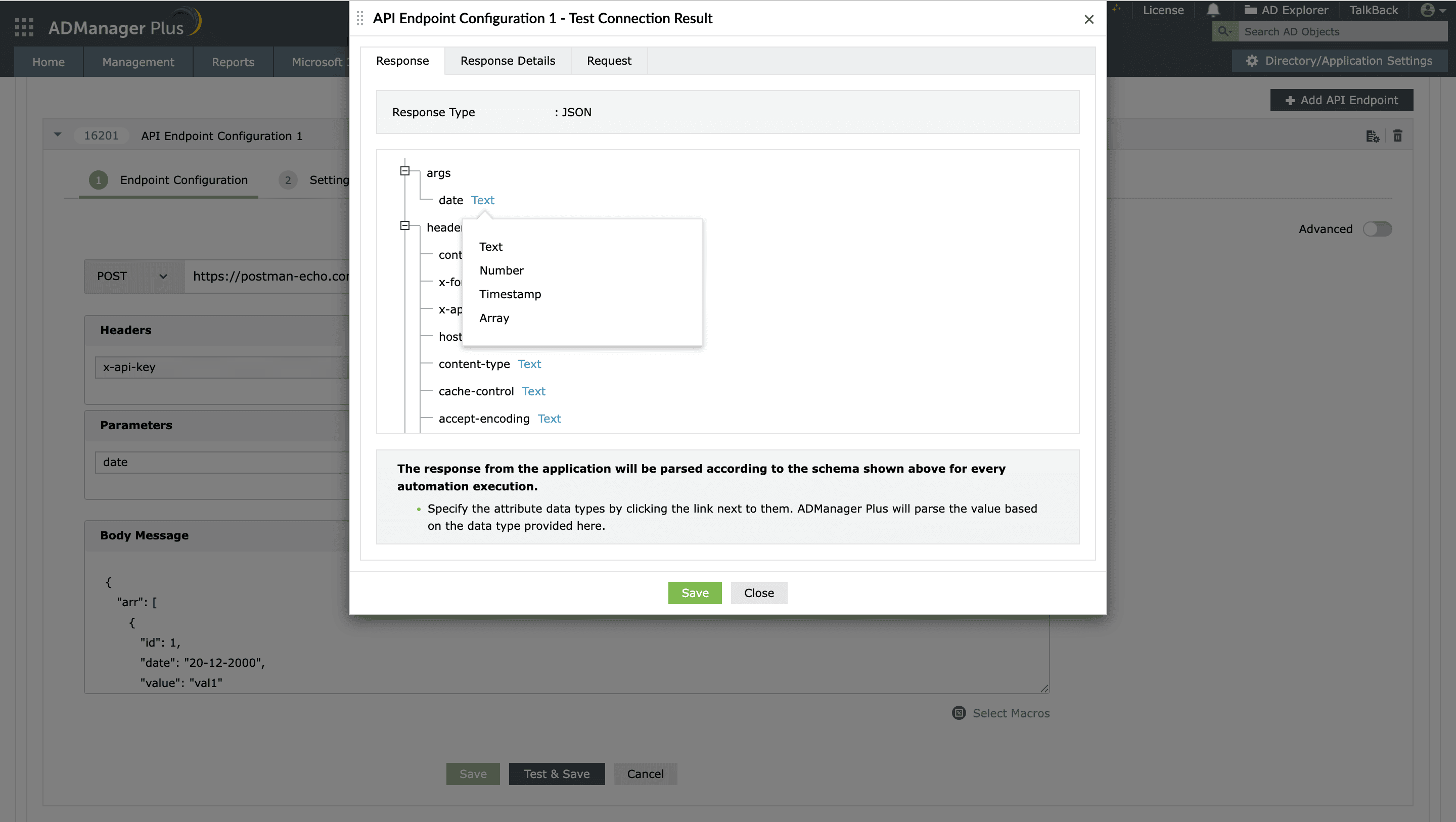
Once done, click Save or Test & Save. A response window will display all the requested elements.

Note:
After configuring an inbound webhook, you can use it as a data source in scheduled automations for different identity management actions in ADManager Plus. To do so, navigate to Automation, click + Create New Automation, and use the Select More option under the Select objects section. This enables you to automate the action you want to perform on the list of objects imported through the inbound webhook either once or periodically.
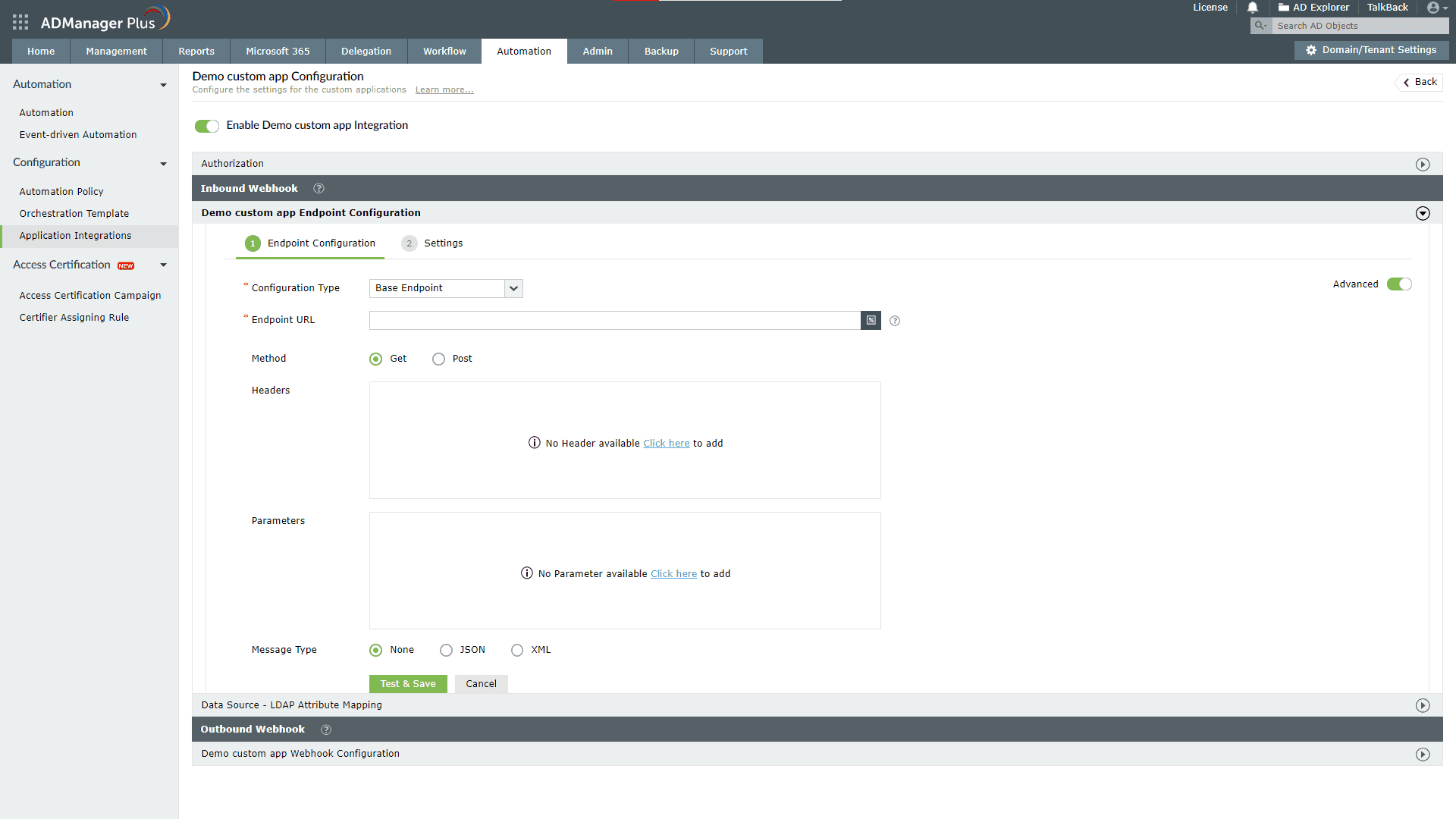
For some API configurations, you may have to configure multiple endpoints where the endpoints are dependent on others. For example, the first endpoint fetches all employee IDs in the organization, and you need to hit another API for each employee ID received in the response to fetch each employee's details. In cases like these, configure the first API as a base endpoint (the default type) and the second endpoint as a dependent endpoint using the Advanced option in the Endpoint Configuration section.
Toggle the Advanced button to on under the API Endpoint Configuration to fill in information when the endpoint is dependent on the previous API endpoint.

Follow all the steps mentioned in the Inbound webhook configuration section. When the Message Type is set to JSON and you need to retrieve data from an array of responses based on specific conditions, ADManager Plus allows you to do so using JSON conditional parsing.
This option filters the required data from the API's JSON response containing an array of values for a desired key, which can then be mapped to the corresponding LDAP attributes. The mapping format can be configured using single or multiple conditions, based on your requirements.
Condition syntax
Use the following formats to define a condition:
<path of array object key>[?(('<path of condition key>')='<condition value>')].<path of value to be fetched>
<path of array object key>[?(('<path of condition key>')='<condition value>')&(('<path of condition key>')='<condition value>')].<path of value to be fetched>
| <path of array object key> | The path to the JSON array object, ending with its key |
| <path of condition key > | The path to the key inside the array object used for the condition |
| <condition value> | The value to be matched in the condition path |
| <path of value to be fetched> | The path to the value that needs to be fetched (after the array object) |
Sample JSON response:
{
"data": [
{
"id": 443,
"name": "TestUser",
"employee_id": 443,
"address": [
{
"position": {
"city": {
"name": "cityname1",
"isHome": "false"
},
"phone": {
"number": 999888777,
"isHome": "true"
}
}
},
{
"position": {
"city": {
"name": "cityname2",
"isHome": "true"
},
"phone": {
"number": 5556666444,
"isHome": "false"
}
}
}
],
"items": [
{
"category": "department",
"reference": "department_reference",
"data": [
{
"value": "teamname1",
"type": "primary"
},
{
"value": "teamname2",
"type": "secondary",
"details": [
{
"id": "oldteamid",
"type": "old"
},
{
"id": "newteamid",
"type": "new"
}
]
}
]
},
{
"category": "group",
"reference": "group_reference",
"data": [
{
"value": "groupname1",
"type": "primary"
},
{
"value": "groupname2",
"type": "secondary",
"details": [
{
"id": "oldgroupid",
"type": "old"
},
{
"id": "newgroupid",
"type": "new"
}
]
}
]
}
]
}
]
}
Retrieve a value from a JSON array based on a single condition. This method is useful when you want to filter and extract a specific piece of information that meets only one matching criterion from a set of data. The condition acts as a simple filter, ensuring that only the relevant object from the array is selected.
Example: To fetch the value cityname2 from the sample response, set the condition path data[].address[].position.city.isHome to true and the target array path as data[].address[].position.city.name.
Syntax: data[].address[?(('position.city.isHome')='true')].position.city.name
Explanation:
Output: The given condition matches the second item in the array, so the resulting value is cityname2.
Retrieve a value from a JSON array and map it to an LDAP attribute by applying multiple conditions. This method is ideal for complex or nested data where multiple criteria must be met to accurately map the value to LDAP attributes. By combining conditions using the logical AND (&) or OR (|) operator, you can narrow down the selection to an object that meets all specified criteria.
Example: To fetch the value groupname2 from the sample response, set the condition paths data[].items[].category to group and data[].items[].data[].type to secondary, and set the target array path as data[].items[].data[].value.
Syntax: data[].items[?(('category')='group')&(('data[].type')='secondary')].data[].value
Explanation:
Output: The given condition matches the second item in the array, so the resulting value is groupname2.
Note:
Example:
data[].items[?(('category')='group')&(('data[].type')='secondary')&(('details[].type')='new')].details[].id
Example:
data[].items[?(('category')='contact')|(('category')='group')].reference
In ADManager Plus, condition-based parsing can be configured in two ways. Method 1, which is recommended, offers more flexibility since you can define multiple format mappings with different conditions for the same JSON array and reuse them across LDAP attributes. Method 2, on the other hand, is configured directly at the endpoint level and allows only one condition per JSON array path, limiting it to fetching only one value from the array. This makes it more restrictive but simpler to set up.
Method 1: [recommended]
Note: For each LDAP attribute you want to map, you can create multiple formats using this method.
Method 2:
You have to follow all the steps mentioned in the inbound webhook configuration section except for this step. When the Message Type is set to XML, ADManager Plus requires the Response Parser CSV file. This file helps in filtering only the required data from the endpoint's XML response. The filtered attributes can then be linked to the AD LDAP attributes.
The CSV file should have three columns as given below:
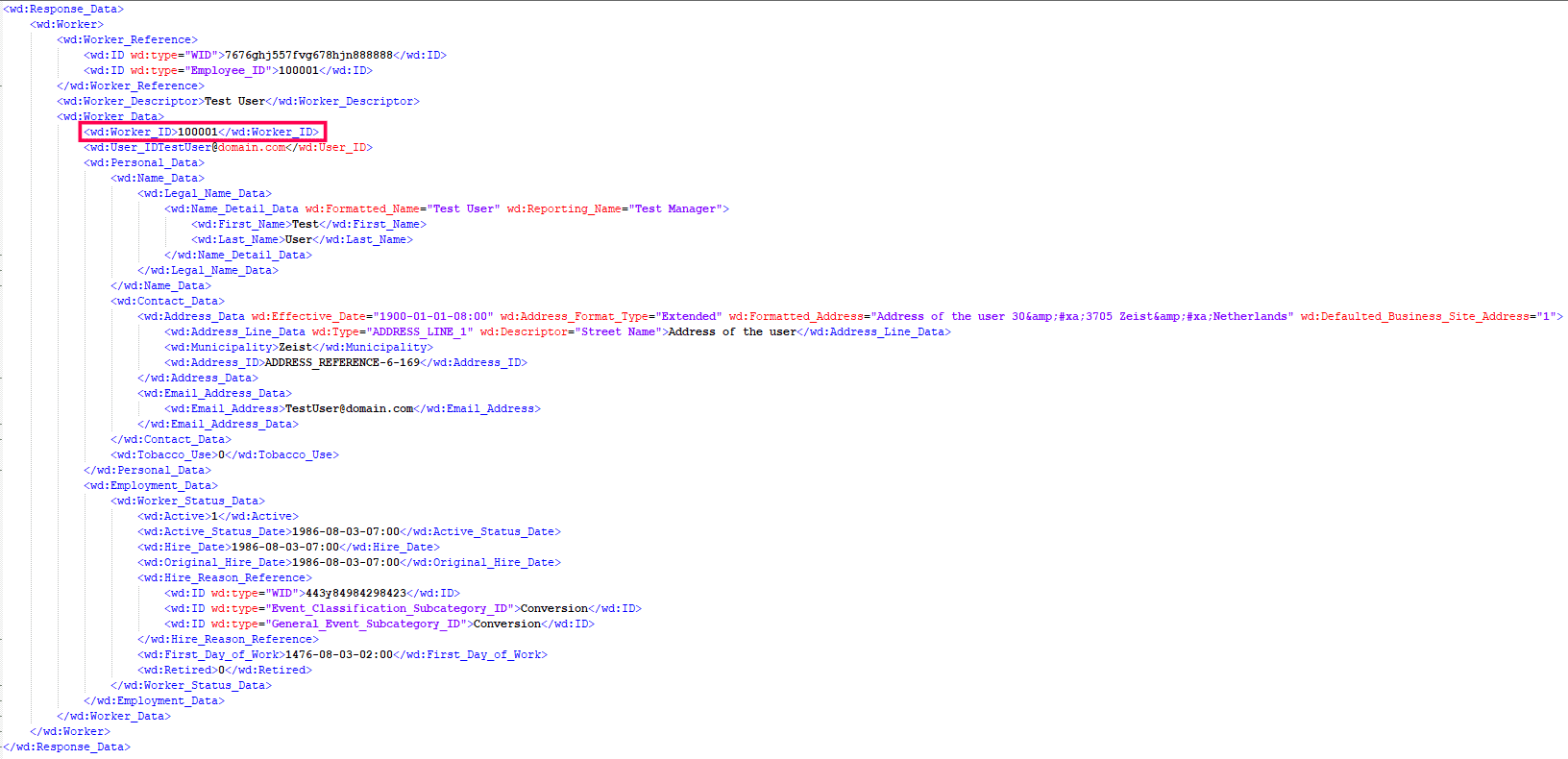
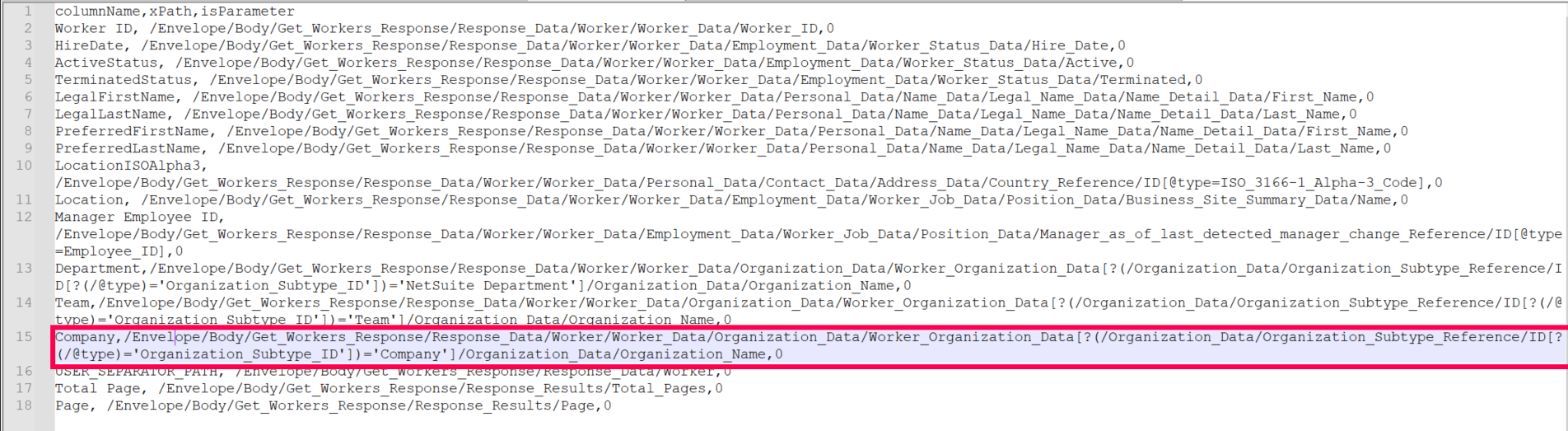
For example, as shown in the images below, the value for the columnName Worker ID as highlighted in the sample CSV file is extracted from the attribute Worker_ID(value:100001) as highlighted in the sample XML response. This value can be mapped to the AD LDAP attribute employeeID later.
Sample CSV file:

Sample XML response:

Click here to download a sample CSV file.
Value-based indexing
Value-based indexing is a technique used to efficiently locate and retrieve data by applying specific conditions to its values. This approach enables users to create a specific xPath, allowing them to efficiently find entries that match defined criteria.
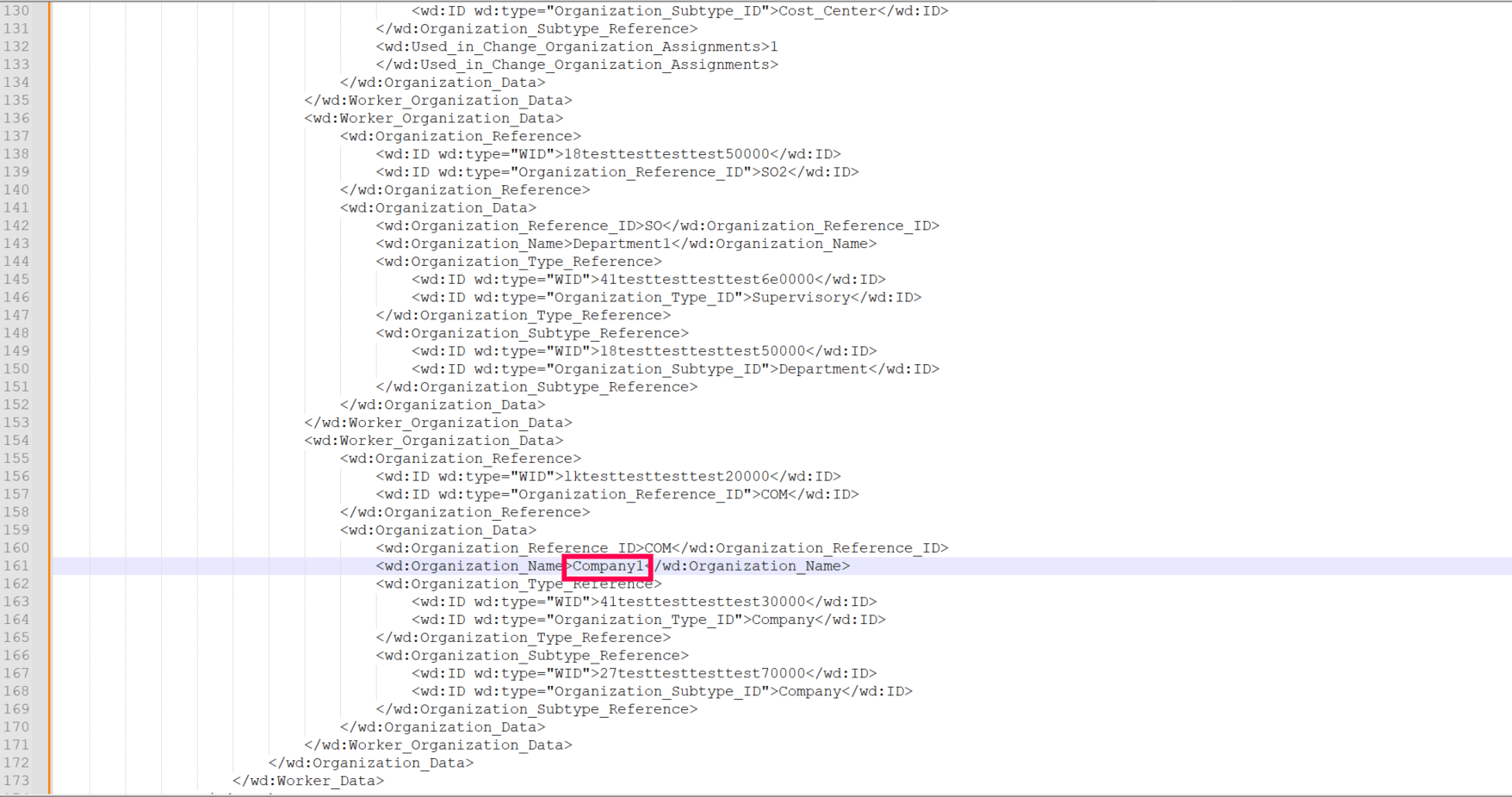
As shown in the images below, the value for the Company column in the sample CSV file is taken from the Organization_Name attribute (value: company1), highlighted in the second image. Since there are multiple entries of Worker__Organization_Data, an additional condition (Organization_Subtype_ID='company') is set to specify the correct Worker_Organization_Data. This means that the final value is selected based on a condition tied to another specific value.


This xPath filters the data under Worker_Organization_Data by checking if the Organization_Subtype_ID equals Company. It then returns the Organization Name of the matching condition.
To create a condition, follow these steps:
This approach enables creation of a precise xPath and results based on a defined condition.
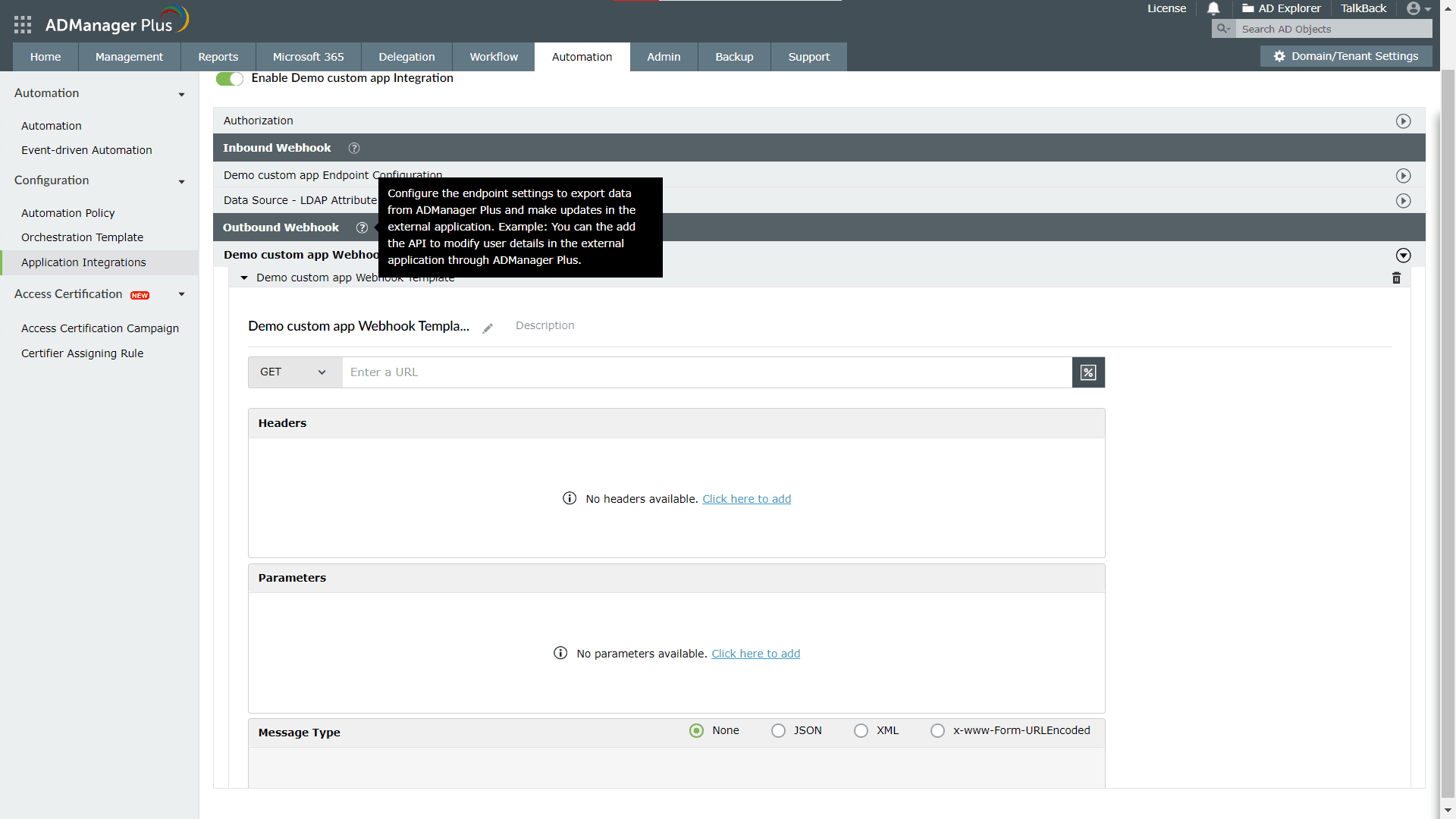
An outbound webhook enables you to send the changes made in AD using ADManager Plus to the custom application. To configure an outbound webhook:

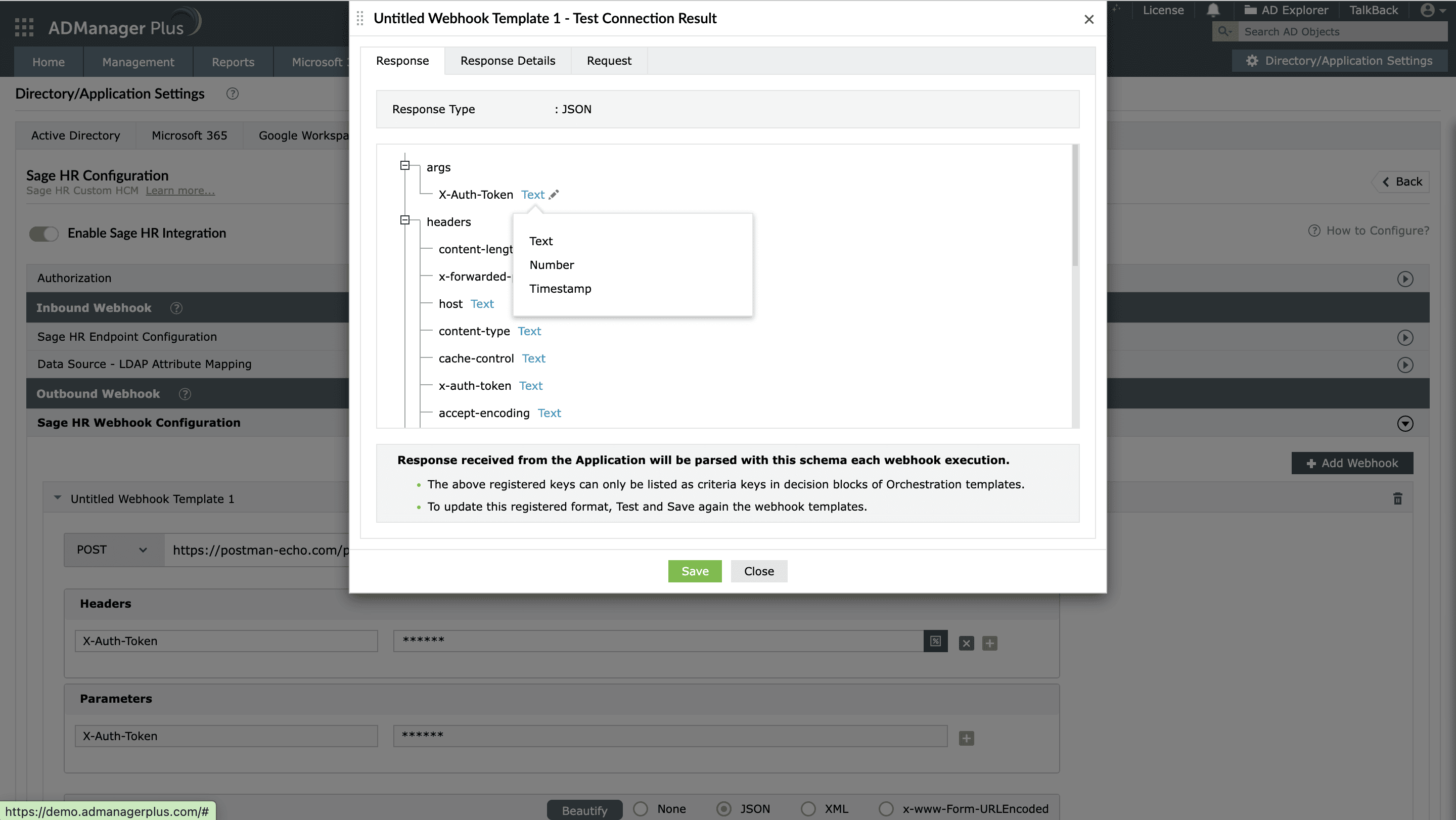
Note: In the webhook response window, you can modify the data type or format of the attribute value fetched by the API call by using the edit option.
For example: The date format used in the integrated app might be different from the date format used in ADManager Plus. To resolve this, use the edit option in the response window to modify the date format.

After you configure an outbound webhook for the required action, use it as a block in an orchestration template. The configured Orchestration Template can be executed using event-driven automations, scheduled automations, or automation policies. It can also be applied directly to the desired users to perform a sequence of actions on them under Management > Advanced Management > Orchestration.